
98 lines
4.7 KiB
Markdown
98 lines
4.7 KiB
Markdown
# zerotier-planet-builder
|
|
[中文说明](#中文说明)
|
|
A ZeroTierOne planet with zero-ui web interface builder.
|
|
Easier, faster and smaller way to create your private zerotier controller container.
|
|
Inspired by [docker-zerotier-planet](https://github.com/xubiaolin/docker-zerotier-planet) and [zero-ui](https://github.com/dec0dOS/zero-ui).
|
|
## How to use
|
|
- 1 . Fork this repository.
|
|
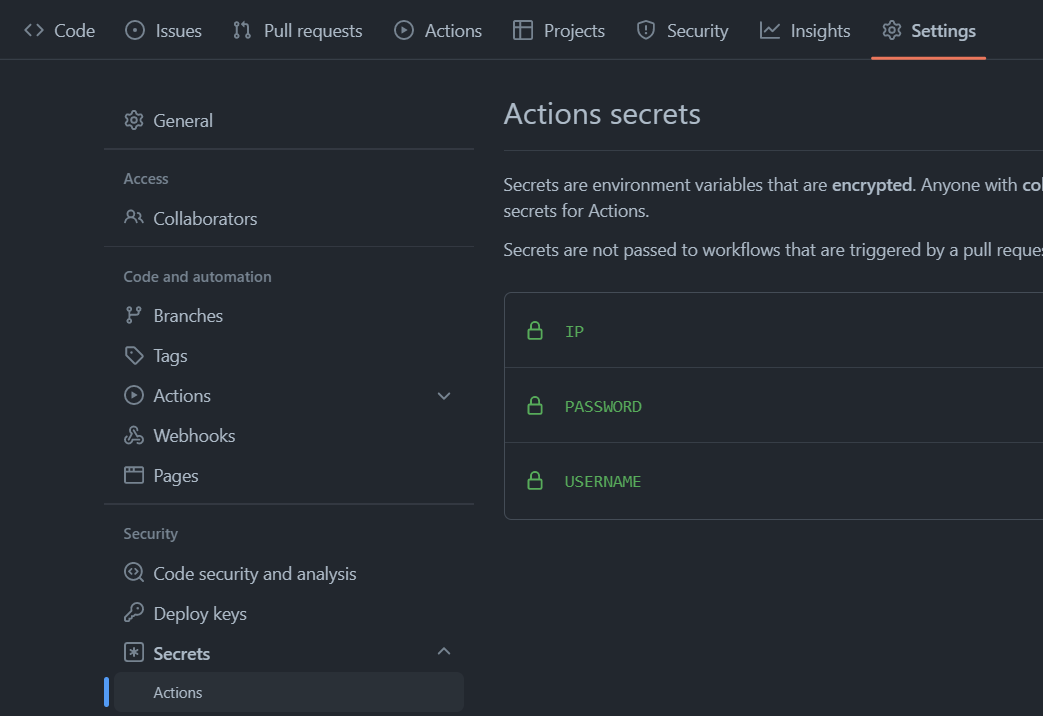
- 2 . Go to Setting - Secrets - Actions , add secrects:
|
|
>IP : your planet server IP.
|
|
USERNAME: zero-ui username.
|
|
PASSWORD: zero-ui password and docker image password.
|
|
|
|
|
|
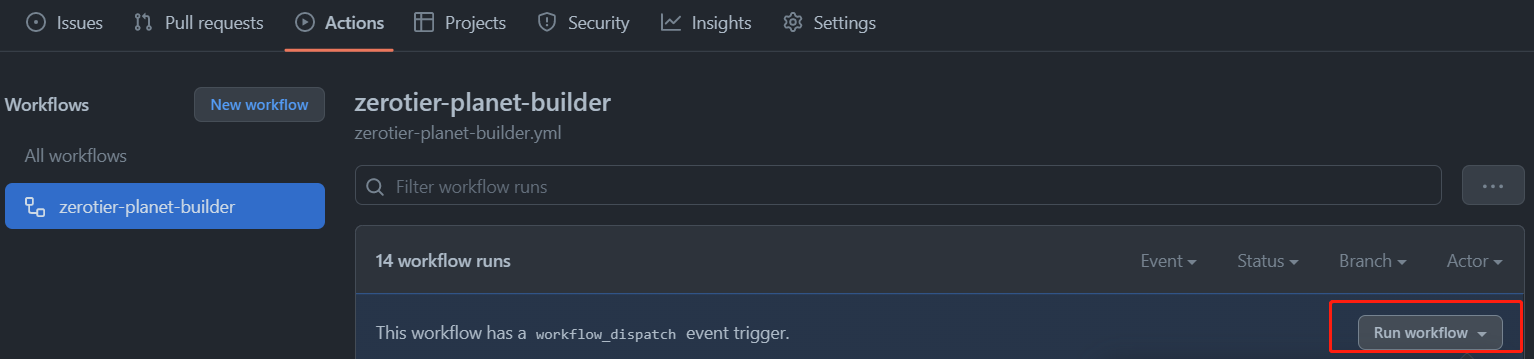
- 3 . Go to Actions,click "Run workflow."
|
|
|
|
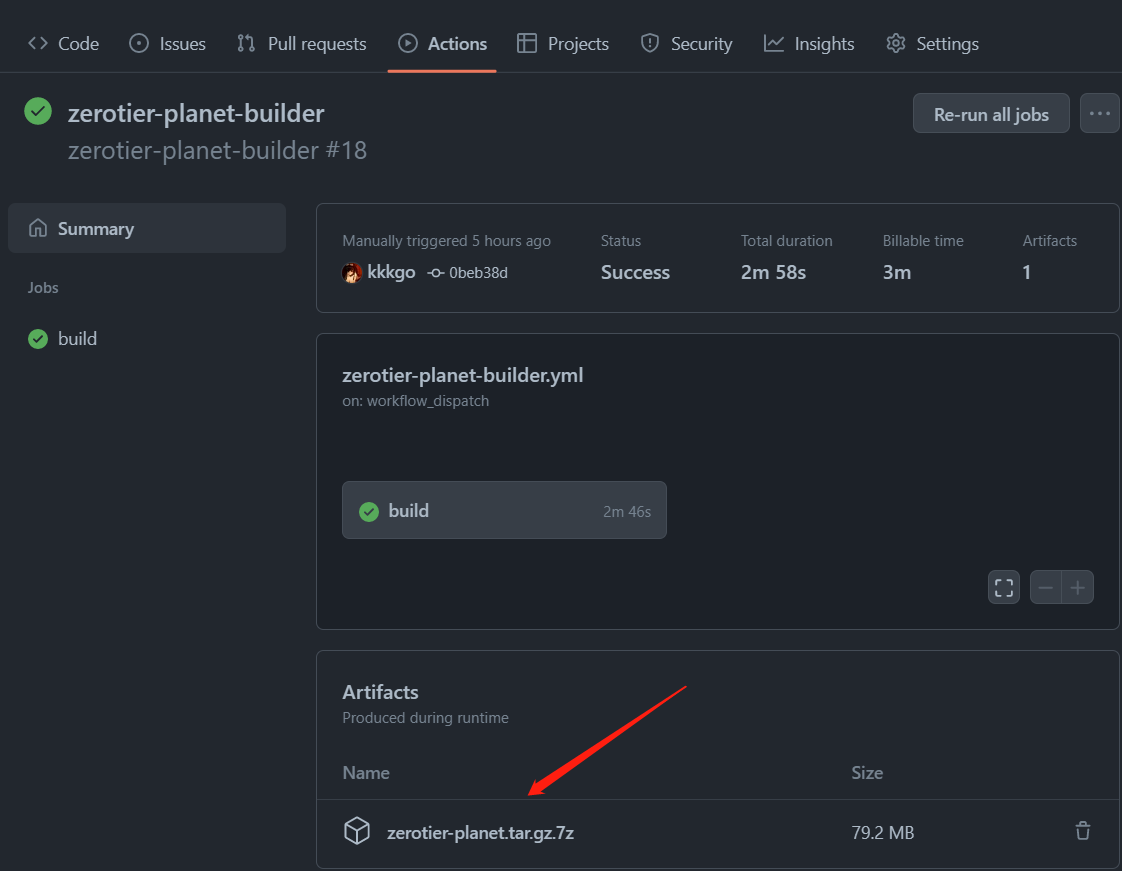
- 4 . Wait 3 minutes and you will see the Artifacts below, download it.
|
|
|
|
- 5 . Use the password you set to unzip it to get **zerotier-planet.tar.gz** and upload it to your server.
|
|
Prepare the docker environment on your server and run the following command to import the image:
|
|
```sh
|
|
docker image load < zerotier-planet.tar.gz
|
|
```
|
|
Check your image:
|
|
```sh
|
|
docker images
|
|
```
|
|
Run docker:
|
|
```sh
|
|
docker run -d --name zerotier-server -p 4000:4000 -p 9993:9993/udp zerotier-planet
|
|
```
|
|
Or, if you want to mount the data to the host path
|
|
```sh
|
|
docker run -d --name zerotier-server -p 4000:4000 -p 9993:9993/udp -v /data/zerotier:/var/lib/zerotier-one/controller.d -v /data/zero-ui/:/app/backend/data zerotier-planet
|
|
```
|
|
Note that each run of the docker image produces a unique ID related file. If you create a new docker image, you need to copy the related files under/var/lib/zerotier-one under the original image.
|
|
```sh
|
|
docker cp zerotier-server:/var/lib/zerotier-one backup
|
|
```
|
|
Open http://IP:4000, use your secrets USERNAME and PASSWORD to login.
|
|
## For client
|
|
Replace your planet file:
|
|
Download your planet: http://IP:4000/app/planet
|
|
|
|
Windows: C:\ProgramData\ZeroTier\One\planet
|
|
Linux: /var/lib/zerotier-one/planet
|
|
Macos: /Library/Application\ Support/ZeroTier/One/planet
|
|
Andriod: https://github.com/kaaass/ZerotierFix
|
|
|
|
**Note: Restart zerotier client related services after replacing the planet file.**
|
|
|
|
# 中文说明
|
|
一个zerotier planet docker生成器,轻松搭建属于你自己的zerotier服务器,目的是生成更简单,更快和更小的docker镜像。
|
|
本项目参考自 [docker-zerotier-planet](https://github.com/xubiaolin/docker-zerotier-planet) 和 [zero-ui](https://github.com/dec0dOS/zero-ui),关于zerotier planet的概念和用途、客户端文件替换的配置,[docker-zerotier-planet](https://github.com/xubiaolin/docker-zerotier-planet)这个项目描述的很详细,本项目web端使用[zero-ui](https://github.com/dec0dOS/zero-ui),更详尽的web端配置可以点进该项目查看进阶使用指南。
|
|
|
|
## 怎么使用
|
|
- 1 . Fork 这个项目.
|
|
- 2 . 点击你项目的 Setting - Secrets - Actions , 添加 secrects:
|
|
>IP : 你的 planet 服务端 IP,就是公网IP
|
|
USERNAME: 登陆zero-ui的用户名
|
|
PASSWORD: zero-ui 的密码,和docker的镜像压缩包密码.
|
|
|
|

|
|
- 3 . 点击 Actions,点击 "Run workflow."
|
|

|
|
- 4 . 等待三分钟左右,就可以下载docker镜像了,大小在100M以内.
|
|

|
|
- 5 . 用你之前设置的密码解压文件得到 **zerotier-planet.tar.gz** 并上传到服务器.
|
|
在你的服务器准备docker运行环境,运行以下命令导入镜像:
|
|
```sh
|
|
docker image load < zerotier-planet.tar.gz
|
|
```
|
|
检查镜像是否导入成功:
|
|
```sh
|
|
docker images
|
|
```
|
|
运行docker:
|
|
```sh
|
|
docker run -d --name zerotier-server -p 4000:4000 -p 9993:9993/udp zerotier-planet
|
|
```
|
|
或者,如果你想把数据挂在到主机目录,以便容器损坏的时候迁移:
|
|
```sh
|
|
docker run -d --name zerotier-server -p 4000:4000 -p 9993:9993/udp -v /data/zerotier:/var/lib/zerotier-one/controller.d -v /data/zero-ui/:/app/backend/data zerotier-planet
|
|
```
|
|
注意每次运行docker镜像生产唯一的id相关文件,如果你建立新docker镜像的话,你需要复制原来镜像下/var/lib/zerotier-one下的相关文件
|
|
```sh
|
|
docker cp zerotier-server:/var/lib/zerotier-one backup
|
|
```
|
|
打开 http://IP:4000, 用你设置的secrets USERNAME 和 PASSWORD 登陆.
|
|
## 客户端
|
|
替换planet文件:
|
|
下载planet: http://IP:4000/app/planet
|
|
|
|
Windows: C:\ProgramData\ZeroTier\One\planet
|
|
Linux: /var/lib/zerotier-one/planet
|
|
Macos: /Library/Application\ Support/ZeroTier/One/planet
|
|
Andriod: https://github.com/kaaass/ZerotierFix
|
|
**注意替换planet文件后重启zerotier客户端相关服务.**
|